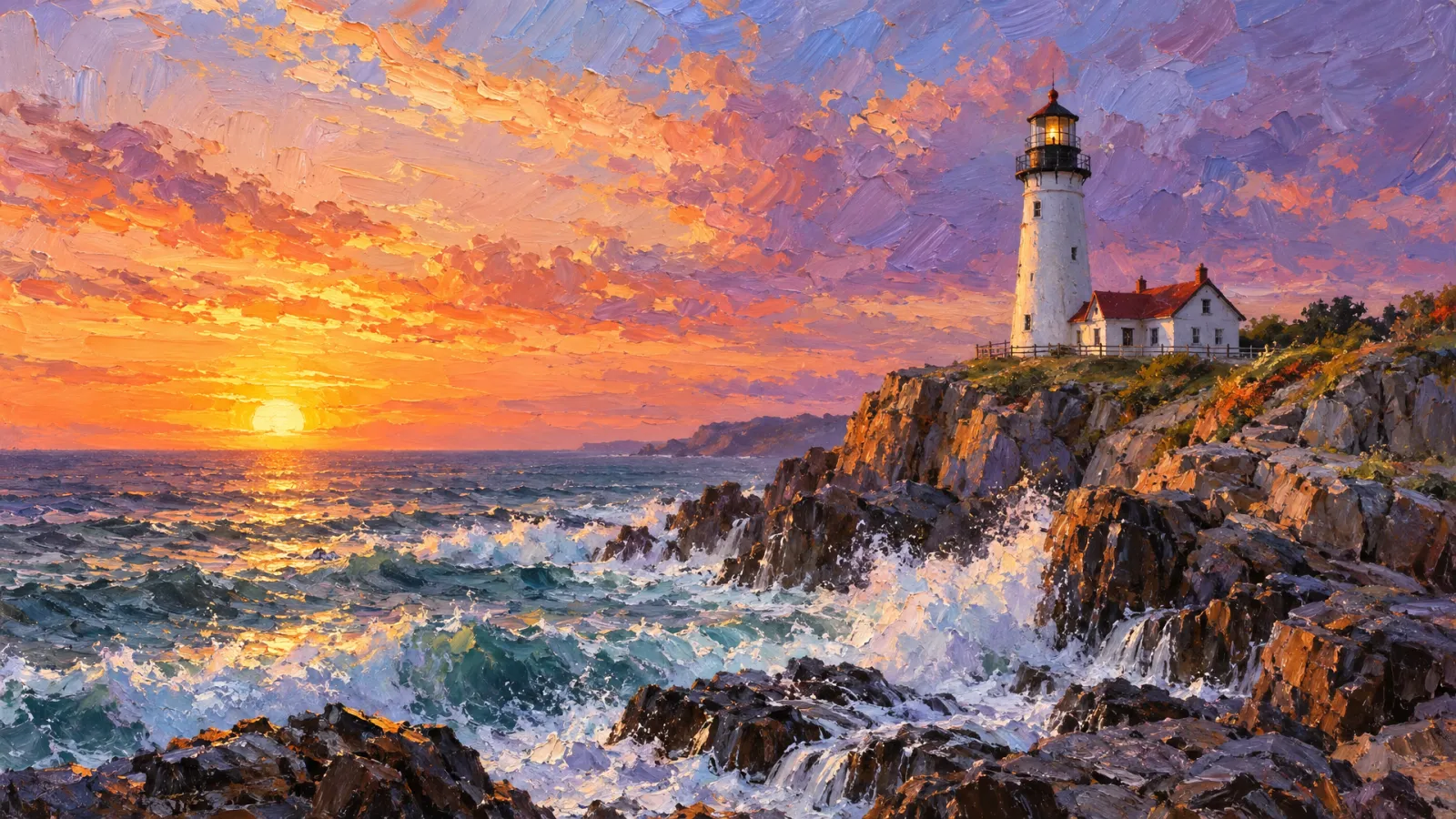
Recraft V4.1 generates raster images from text, while Recraft V4.1 Text to Vector produces editable SVG artwork. Pro is the higher-resolution raster option, described as reaching up to 2048×2048 and ultra-wide formats. On Raywake, standard raster costs $0.06 per image, Pro costs $0.34 per image, and vector generation is up to $0.13 per run with default options. All three require a prompt and expose image-size and color inputs.
Choose among Recraft V4.1, Recraft V4.1 Pro and Recraft V4.1 Text to Vector according to the asset you need to deliver. The important first decision is whether you need pixels or editable vector shapes. Prices and settings are as of 31 October 2026.
Recraft V4.1 at a glance
| Item | Standard raster | Pro raster | Text to Vector |
|---|---|---|---|
| Output described | Raster image | Higher-resolution raster image | Editable SVG |
| Required input | prompt | prompt | prompt |
| Default size | square_hd | square_hd | square_hd |
| Color inputs | colors, background_color | Same | Same |
| Image-count input | Not listed | Not listed | Not listed |
| Listed price | $0.06 per image | $0.34 per image | Up to $0.13 per default-options run |
How much does Recraft V4.1 cost?
The raster operations have image prices. Vector generation has a maximum price per run with default options.
| Operation | Listed customer price |
|---|---|
| Recraft V4.1 Text to Image | $0.06 per image |
| Recraft V4.1 Pro Text to Image | $0.34 per image |
| Recraft V4.1 Text to Vector | Up to $0.13 per run, default options |
Do not rewrite the vector amount as a fixed price for every configuration. Quote the size and colors you plan to use. These operations have no num_images or other batch-count input; request a quote for each run.
Standard raster is the lower-priced raster choice. Pro costs more and offers higher-resolution output. That does not establish a universal design-quality difference; judge the result against the composition and destination size you need.
Should you choose raster, Pro or vector?
Use standard raster for an image composition that will remain a pixel image in your layout. It can be a useful starting point for editorial artwork, a background or a concept where direct path editing is not required.
Consider Pro when you need a higher-resolution raster image. Pro supports up to 2048×2048 and ultra-wide formats, while sharing the same size presets as the other operations. Check the supported dimensions before requesting a custom size.
Choose Text to Vector when the deliverable is an editable SVG, such as an icon, logo concept or illustration system. Vector shapes can be adjusted in an editor after generation. That changes the production workflow: you can refine a path or color instead of regenerating the whole image.
The Ideogram Vector guide covers another SVG option. Compare those workflows when reference-image inputs or different quality controls matter to your brief, rather than assuming every text-to-vector endpoint exposes identical settings.
How do image size and color controls work?
All three operations list square_hd, square, portrait_4_3, portrait_16_9, landscape_4_3 and landscape_16_9. Each defaults to square_hd. Choose the shape that fits the eventual layout before refining the subject.
The size input also accepts an object with height and width. Use a preset, as in the quote example, unless you have checked the supported custom dimensions.
background_color is an optional object with r, g and b fields. colors is an array that defaults to empty. Check the structure of each color entry and the supported channel values before sending them. You can omit these fields for a basic request.
You can still describe a palette in the prompt. For example, naming navy, coral and cream is a creative instruction, not an undocumented structured API field.
How to call Recraft V4.1 through the API
This example quotes the vector operation for a simple illustration. All three language tabs use the same endpoint and preset size.
curl --fail-with-body https://api.raywake.com/v1/quotes \
  -H "Authorization: Bearer $RAYWAKE_API_KEY" \
  -H "Content-Type: application/json" \
  -d '{"model":"recraft/v4.1/text-to-vector","input":{"prompt":"Flat lighthouse illustration in navy, coral and cream, simple geometric shapes, no lettering","image_size":"landscape_16_9"}}'
For standard raster, use recraft/v4.1/text-to-image. For Pro raster, use recraft/v4.1/pro/text-to-image. Keep the shared documented inputs, then request a new quote for the chosen operation.
These operations have no quality enum or seed field. Do not add settings copied from an unrelated image example. The quotes reference explains the quote response and next API step.
How should you prepare artwork for final use?
For vector output, open the SVG in an editor and inspect the shapes you expect to change. Check small details at the intended display size and verify that the palette suits the surrounding layout. Editable output is a starting asset, not an automatic design approval.
For raster work, inspect edges, composition and the space reserved for surrounding copy. Decide whether any text should remain editable in your layout tool. A strong image brief explains the visual subject without forcing every part of the final page into the generated artwork.
Common questions
Does standard Recraft V4.1 return SVG?
The standard operation produces raster images. Choose the separate Text to Vector model ID for SVG.
What extra resolution does Pro describe?
Pro supports up to 2048×2048 and ultra-wide formats. Check the supported dimensions before requesting a custom size.
Can I request multiple images with num_images?
None of these three Recraft operations accepts that field.
Is the vector price always $0.13?
No. Vector generation costs up to $0.13 per run with default options. Quote the actual request.
Create artwork with Recraft V4.1