If you are looking for a FLUX.2 barcode generator, separate the two jobs in your brief: creating label artwork and encoding a product identifier. Use FLUX.2 Pro to explore the artwork. Render the barcode from the exact identifier in a dedicated barcode tool, and place that exported asset in the finished label.
A convincing set of black lines is not evidence that a scanner will recover the intended number. Treat any barcode drawn inside an AI image as concept artwork until it has been replaced and verified. The workflow below keeps the creative design flexible while keeping the machine-readable data under your control.
Key takeaways
- Generate the label concept with a clear blank area for the barcode.
- Keep the assigned identifier in a separate source of truth.
- Render the barcode from that identifier instead of asking an image model to invent one.
- Preserve the barcode's proportions and surrounding clear space when laying out the label.
- Check the actual printed label as well as the digital file.
Can FLUX.2 Pro create a working barcode?
Do not use the appearance of an image-model output as a guarantee of barcode validity. For a production label, use a barcode asset generated from the intended data and verify the assembled result. This guide proposes a design workflow; it does not report a barcode accuracy test of FLUX.2 Pro.
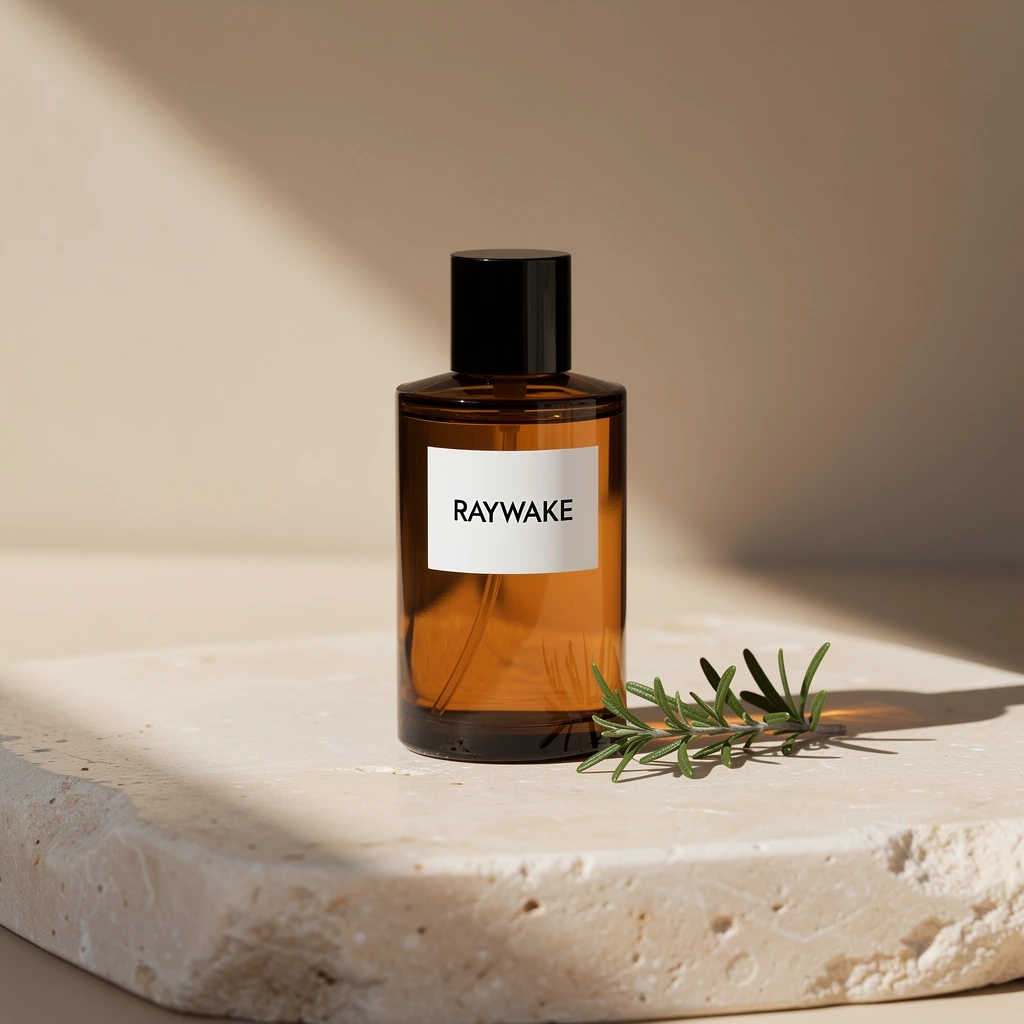
The FLUX.2 Pro model page is a starting point for image creation. For an example of its visual output, our four-model product-photo walkthrough includes an existing perfume image generated on October 1, 2026. That example contains a brand label, but no barcode, and is not a scan test.
Keep the creative acceptance checks separate from the data checks. A label may have attractive colours and composition while containing an incorrect product number. Conversely, a correctly encoded barcode may become difficult to read after it is placed over a busy background or distorted to fit a narrow space.
What should the label prompt include?
Describe the artwork, the intended layout and the space that must remain empty. A flat label concept is easier to assemble than a label already wrapped around a bottle in a perspective image. Keep final product data and exact small print in your layout file, where they remain editable.
Here is an illustrative prompt for exploring a label design:
Flat front-facing concept for a rectangular botanical soap label. Warm ivory background, dark green botanical illustration along the left edge, restrained editorial composition. Leave a clean empty white rectangle in the lower right for a barcode to be added later. No barcode, no QR code, no product numbers, no small print. Flat artwork, no packaging mockup, no perspective.
Adapt the materials, colours and composition to your brief. Review whether the reserved area is usable before choosing a concept. If the model fills it with decoration, revise the artwork or clear that area during layout; do not place the code on top of the decoration.
The prompt is a starting brief, not a tested production recipe. Before a paid run, select the current model settings and check the displayed price quote. The final design still needs your review.
How do you add the barcode without changing its data?
Start with the identifier already assigned to the product or supplied by the publisher, and select the barcode format required by its actual scanning environment. Render it using a tool that explicitly supports that format. Keep the exported barcode and the identifier together in your project files.
Place the asset in your layout editor after the artwork has been chosen. Preserve its proportions and avoid decorative effects, blur or a background that crosses the bars. Keep a clean surrounding area. GS1's barcode implementation guide explains format selection, contrast, placement and the clear area around a symbol.
Check that the readable number shown with the symbol matches the intended identifier. If the artwork is later resized or rearranged, review the barcode again in the final export. Keeping it as a separate layer makes these checks easier than trying to repair lines embedded in a generated image.
Is ITF-14 the right barcode for your label?
Choose the format from the scanning environment, rather than from the image prompt. GS1's implementation guide describes EAN/UPC for retail checkout and ITF-14 or GS1-128 as options for outer cases in logistics. Asking FLUX.2 for an “ITF barcode” does not select or validate the encoded identifier.
Confirm the symbol with the packaging team before reserving space. Its dimensions, clear area and placement depend on the chosen symbol and printing process. Keep the exact dimensions in the final layout, instead of relying on a rectangle drawn by the image model.
Does a book-cover workflow change the ISBN?
The International ISBN Agency explains that an ISBN identifies a specific title, edition and format. The cover design does not decide the ISBN. Use the ISBN assigned to the specific publication, then obtain the corresponding barcode asset through the publishing workflow. Do not ask an image model to supply a plausible number for a real book.
For a cover concept, reserve the barcode area in the back-cover layout. Keep that area clear of the synopsis, artwork and publisher marks. Confirm the final identifier and barcode requirements with the publisher or printer before production. A concept cover can use a visibly labelled placeholder; replace it before the file is approved for printing.
What should you check before printing?
Review the final exported layout, then inspect a physical proof at its intended size. A code that reads from a large screen image can still be difficult to scan when printed on curved, reflective or textured packaging.
Use a scan as a practical check that the decoded data matches the intended identifier. For production quality requirements, arrange the relevant barcode verification with the printer or packaging team; a successful phone scan alone is not a full print-quality assessment. GS1 provides barcode standards and verification resources.
Your approval record should include the artwork version, the identifier, the barcode asset and the final print file. If any of these changes, repeat the affected checks. This keeps an attractive concept from becoming an incorrect label during export or production.
Build the creative part on Raywake
Use FLUX.2 Pro to explore the image concept and check the current quote before generating. Add the verified barcode in the final layout tool, where its data and proportions remain explicit. For product visuals that require exact packaging, start from the real product photograph and review a suitable editing model in the model catalog.
To understand the balance shown before and after a run, read the balance guide. To see a documented creative example with recorded settings, open the product-photo comparison.
Create the label artwork